

Before you connect
Meta controls the login, business selection, and approval checks inside embedded signup. Before you start, make sure you have a Facebook account. During the flow you can create a Meta Business Portfolio and WhatsApp Business Account (WABA) if you need. If you already have these created, make sure you have:- access to the correct Meta Business Portfolio
- access to the WhatsApp Business Account (WABA)
- complete business information in Meta, including legal name, address, business phone number, and a public HTTPS website
- no unresolved number-status or capacity issues in WhatsApp phone numbers
- no unresolved WABA status, business verification, billing, or payment prompts in WhatsApp account settings
- capacity in the selected Business Portfolio for another WhatsApp phone number
Connection options
Instant setup (digital number)
Get a pre-verified US phone number without SMS verification. Before using this option:- use a Meta Business Portfolio that can add another WhatsApp phone number
- choose one of the pre-verified numbers inside Meta (Meta may call it a Kapso-provided or BSP-provided number)
- watch the pre-signup guidance in Kapso if it appears, because it shows which Meta phone-number option to choose
- Go to Connected numbers → Connect new number
- Select Instant setup
- Confirm the instruction that you should choose a pre-verified number in Meta
- Watch the pre-signup guidance if Kapso shows it
- Click through to open Meta embedded signup
-
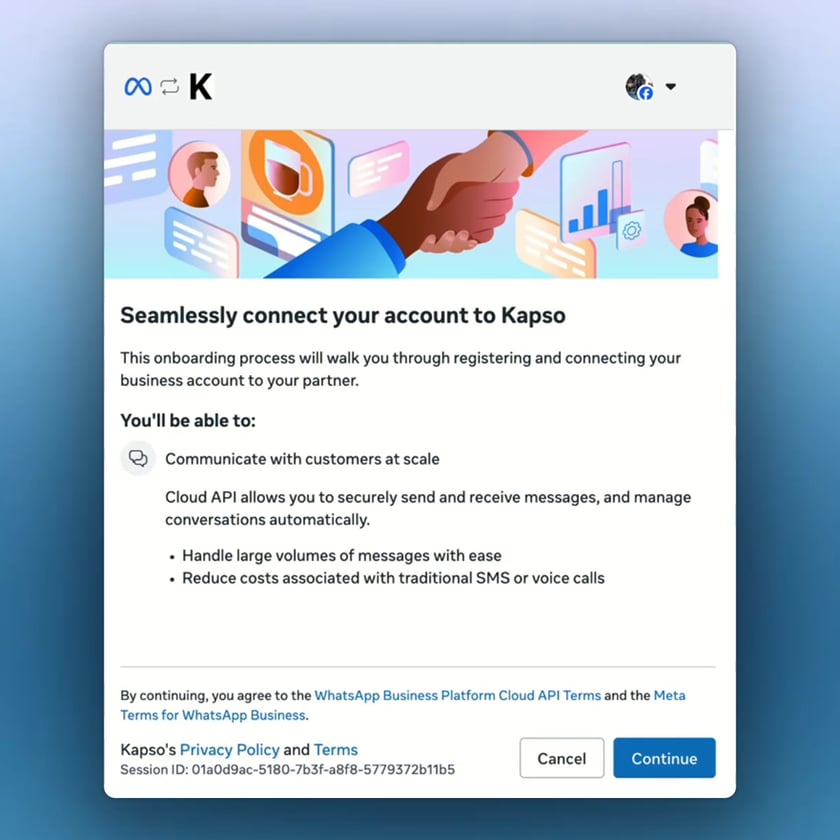
Log in with the Facebook account that has access to your business. On Seamlessly connect your account to Kapso, review what Kapso will be able to do and click Continue.
-
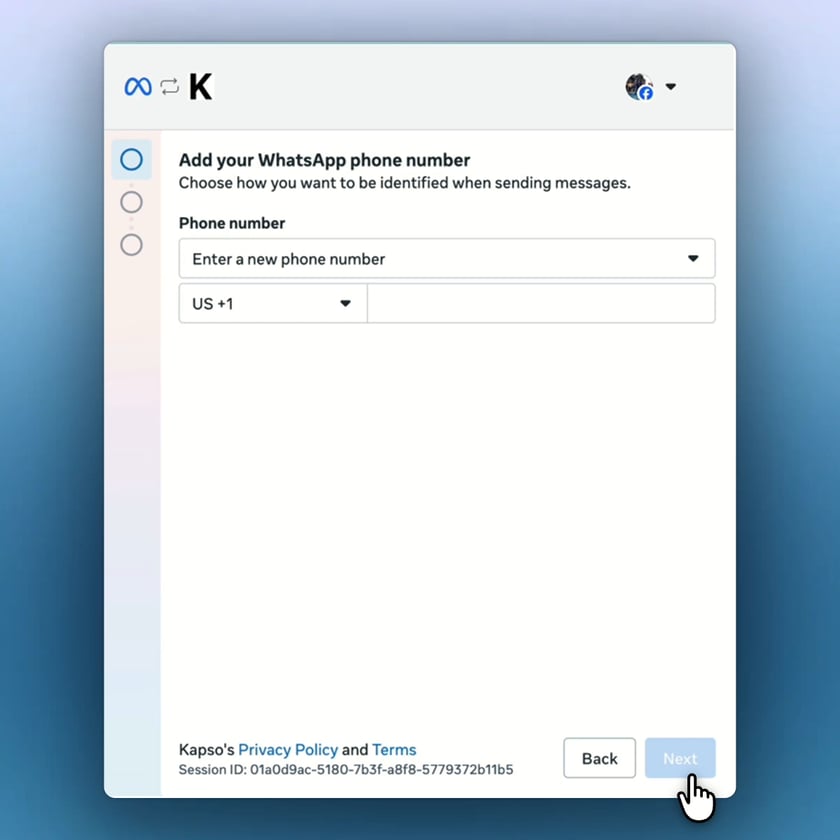
On Add your WhatsApp phone number, open the Phone number dropdown. It starts on Enter a new phone number.
-
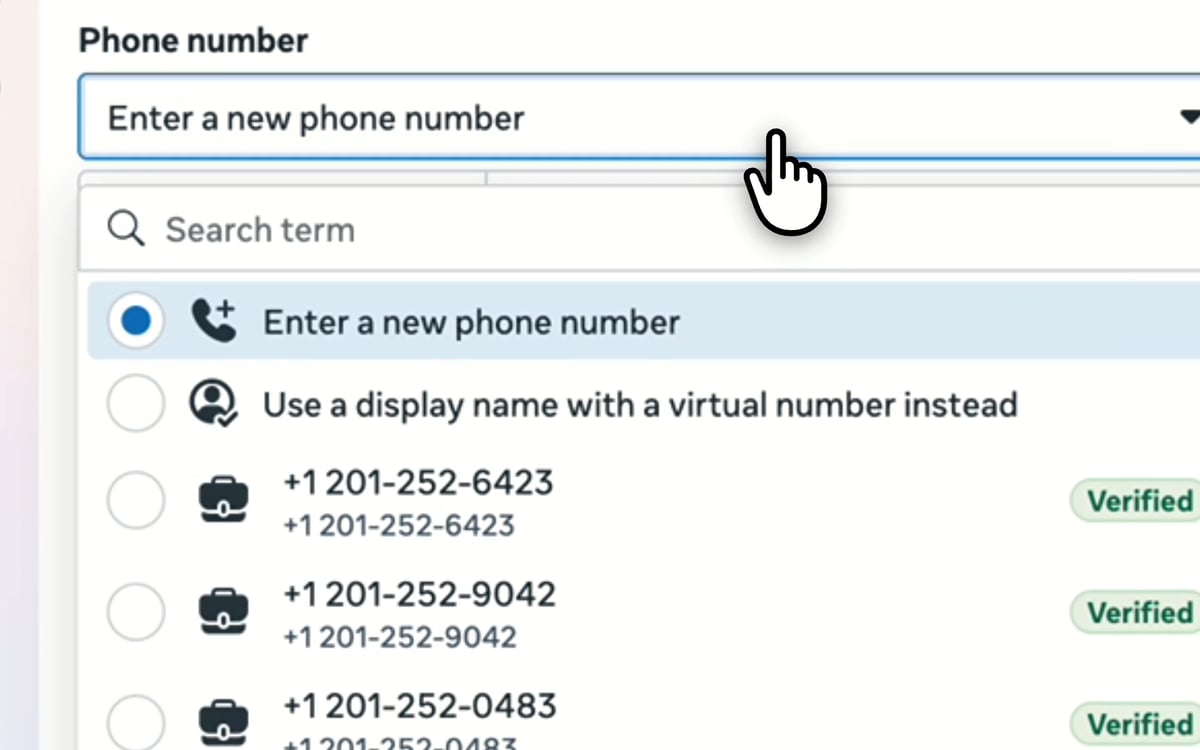
Select one of the pre-verified numbers in the list. They show a briefcase icon and a Verified badge. Do not choose Use a display name with a virtual number instead, and do not choose Enter a new phone number.
-
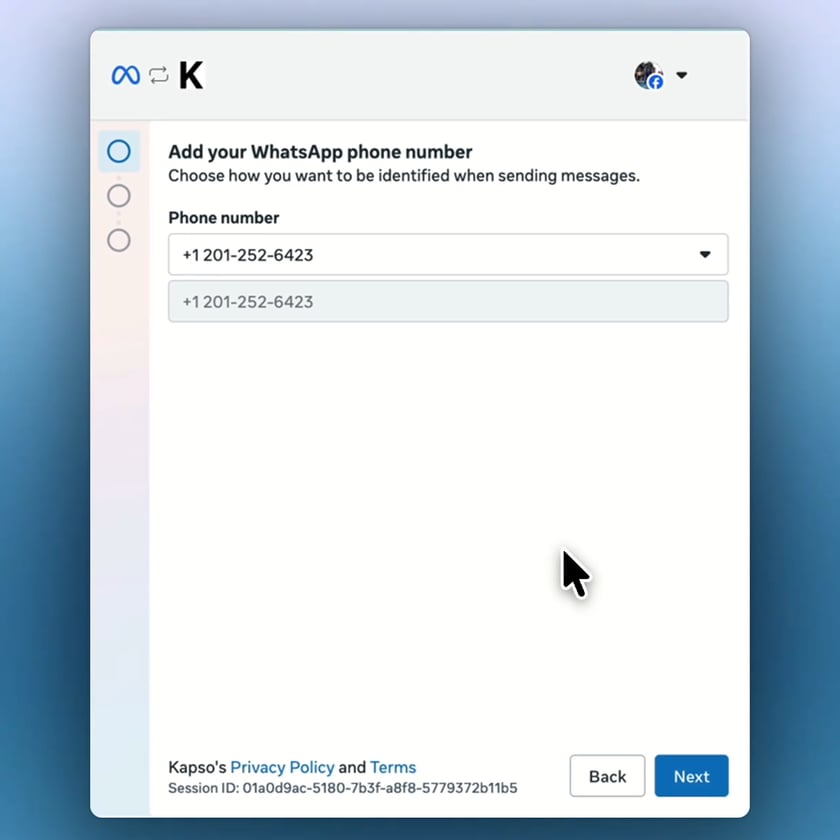
Confirm that the number you picked is shown in the Phone number field, then click Next.
-
On Select the business assets to share with Kapso, choose the Business portfolio for the business you want to connect.
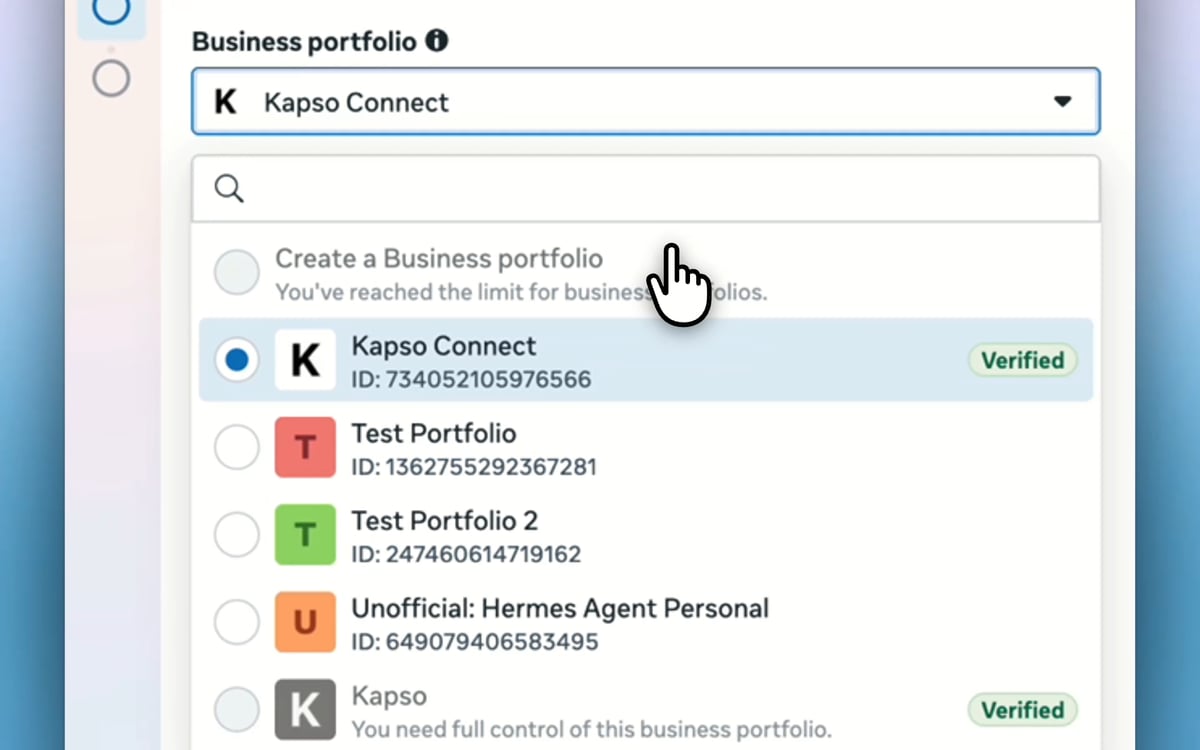
-
In WhatsApp Business account, choose an existing account or Create a WhatsApp Business account, then click Next.
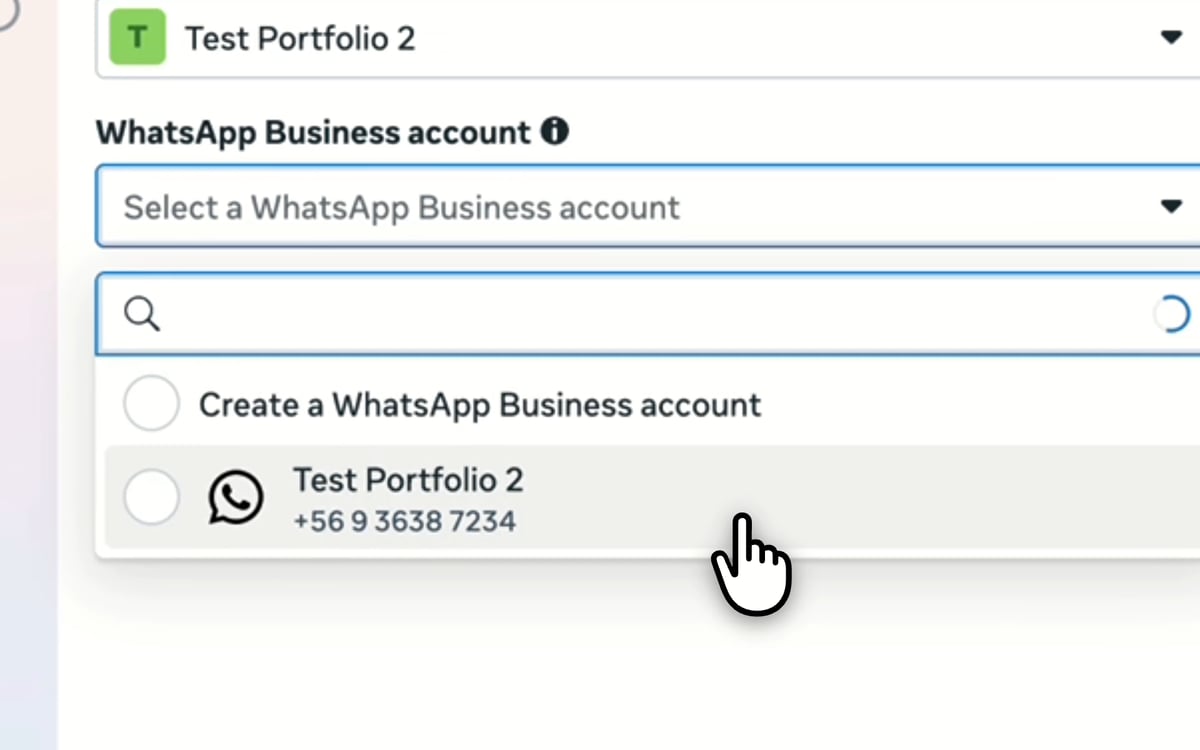
-
On Review what you’ll share with Kapso, review the requested access and click Confirm. Meta shows Connecting your account for a few moments.
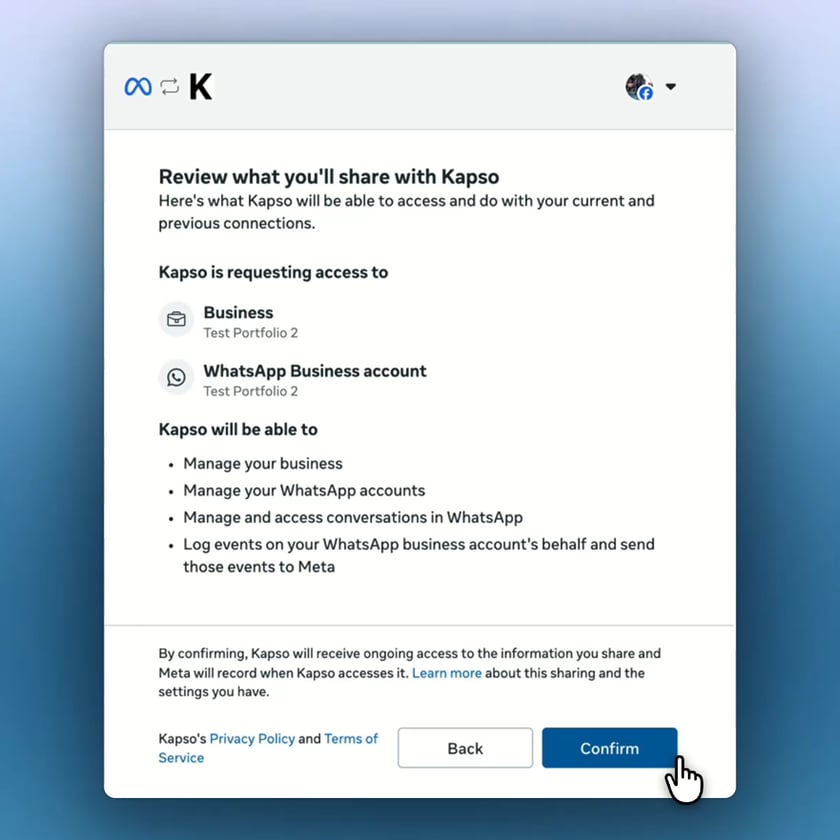
-
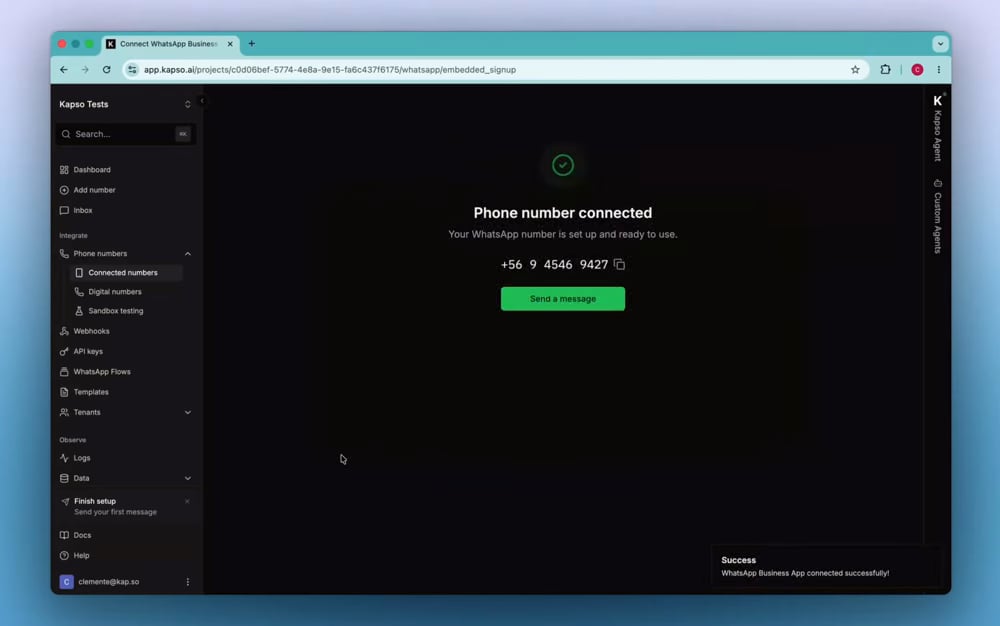
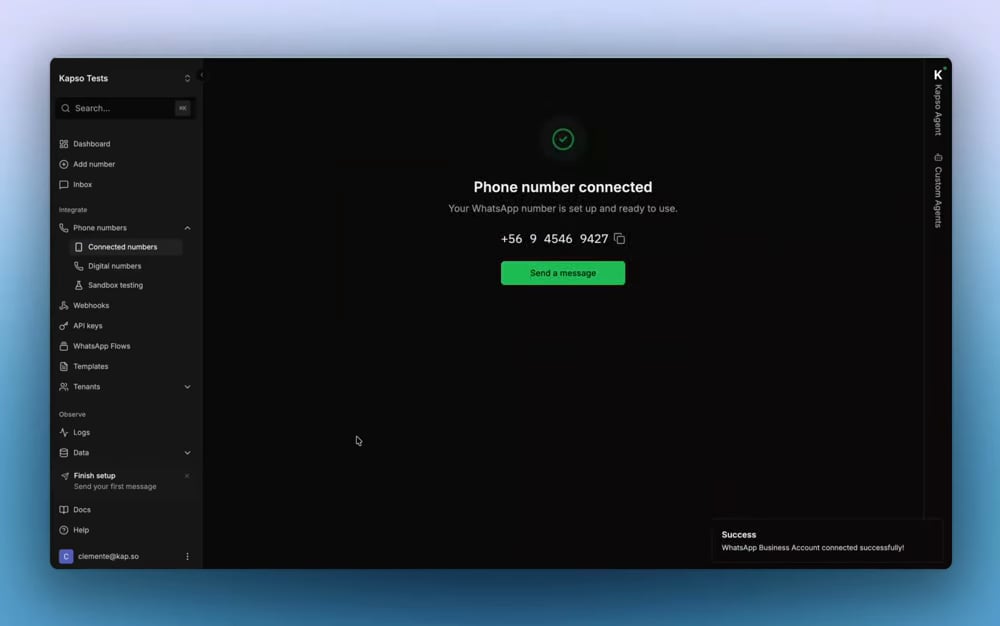
When Meta shows Your account is connected to Kapso, click Finish. This final step sends you back to Kapso so the connection can be completed.
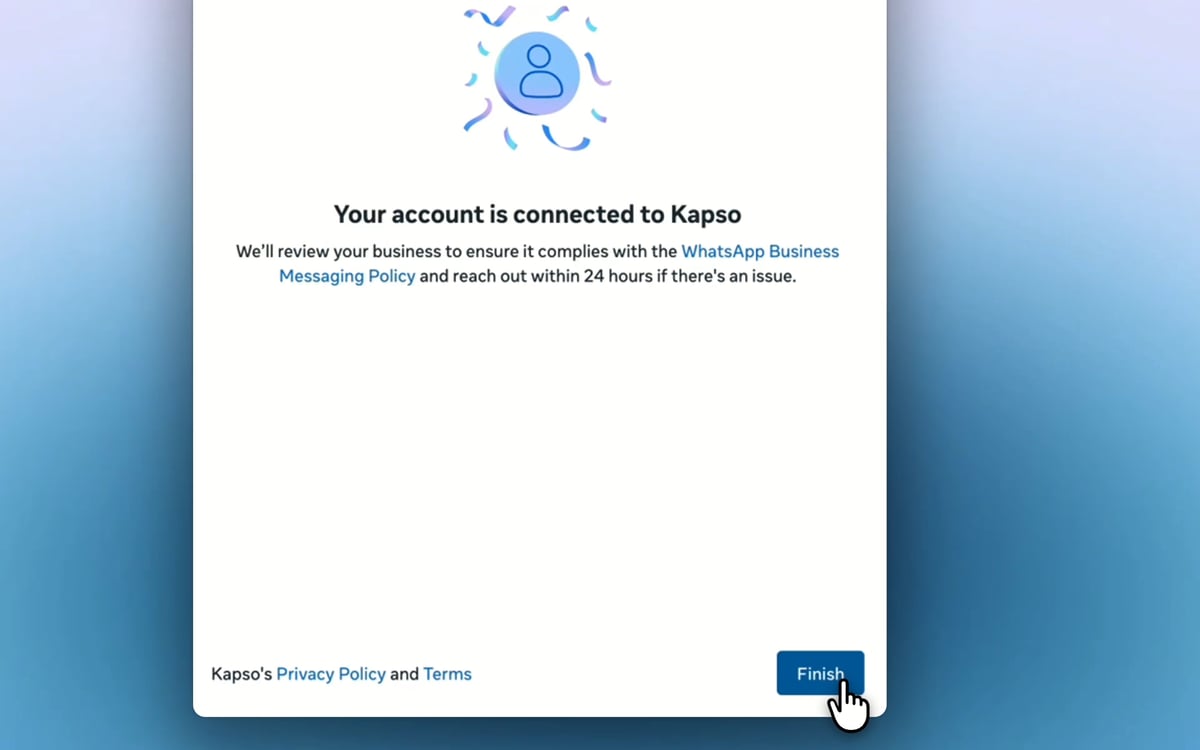
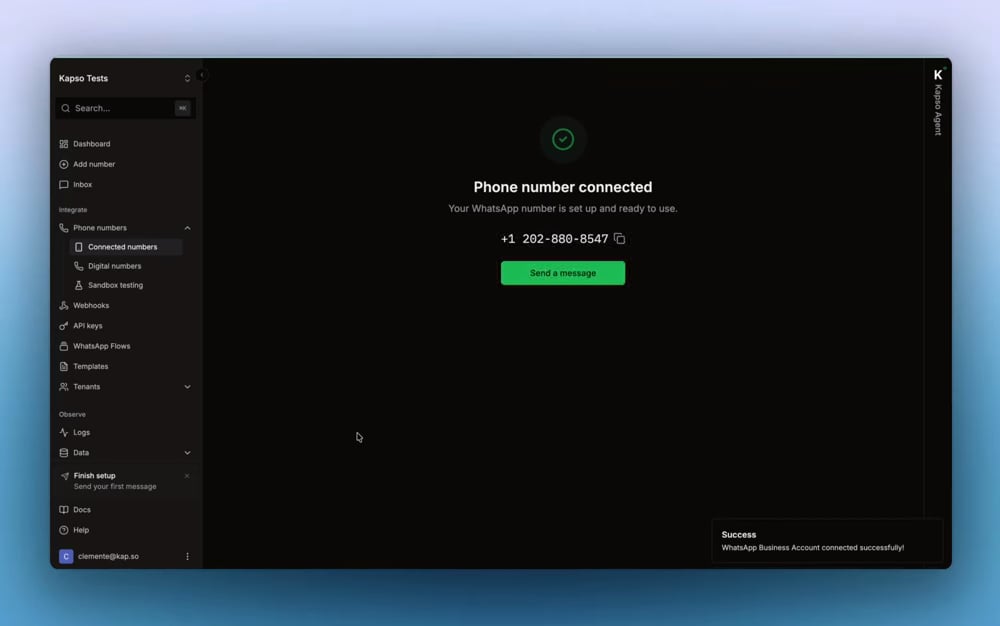
WhatsApp Business App
Keep using the WhatsApp Business app on your phone alongside Kapso. Before using this option:- make sure the number is active in the WhatsApp Business App, not the personal WhatsApp app
- update the WhatsApp Business App and keep the phone nearby with a working camera
- for a number linked to another provider, follow the coexistence recovery steps, including credit-line verification
- complete Business App pairing when prompted; if Meta asks for SMS or voice code verification instead, stop and send support screenshots of the full flow
- Go to Connected numbers → Connect new number
- Select WhatsApp Business App
- Click through to open Meta embedded signup
-
Log in with the Facebook account that has access to your business. On Seamlessly connect your account to Kapso, review what Kapso will be able to do and click Continue.
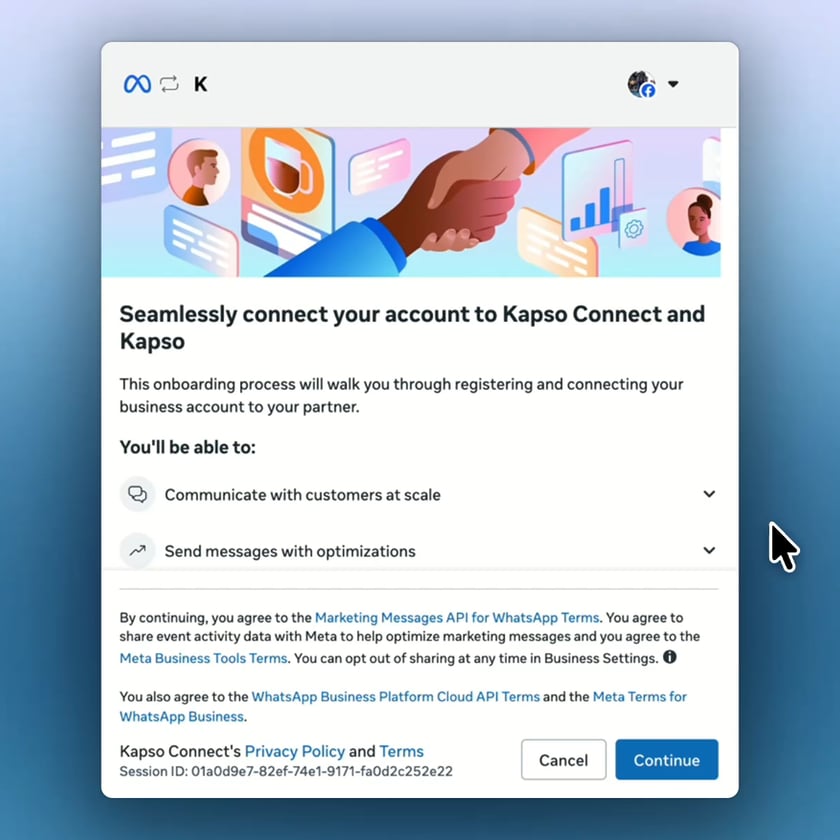
-
On Add your WhatsApp phone number, keep Enter a new phone number selected. Select the country code, enter the phone number that is already active in your WhatsApp Business App, and click Next.
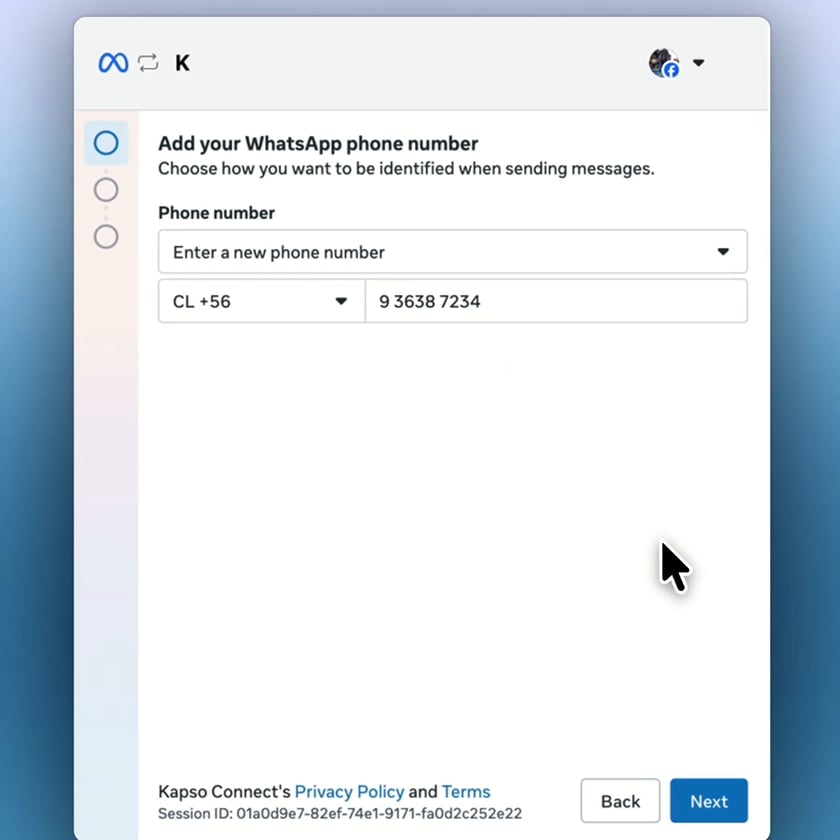
-
On Verify your account details, check that the profile name, number, and website match your WhatsApp Business App, then click Next. If the details are wrong, click Back and fix the phone number.
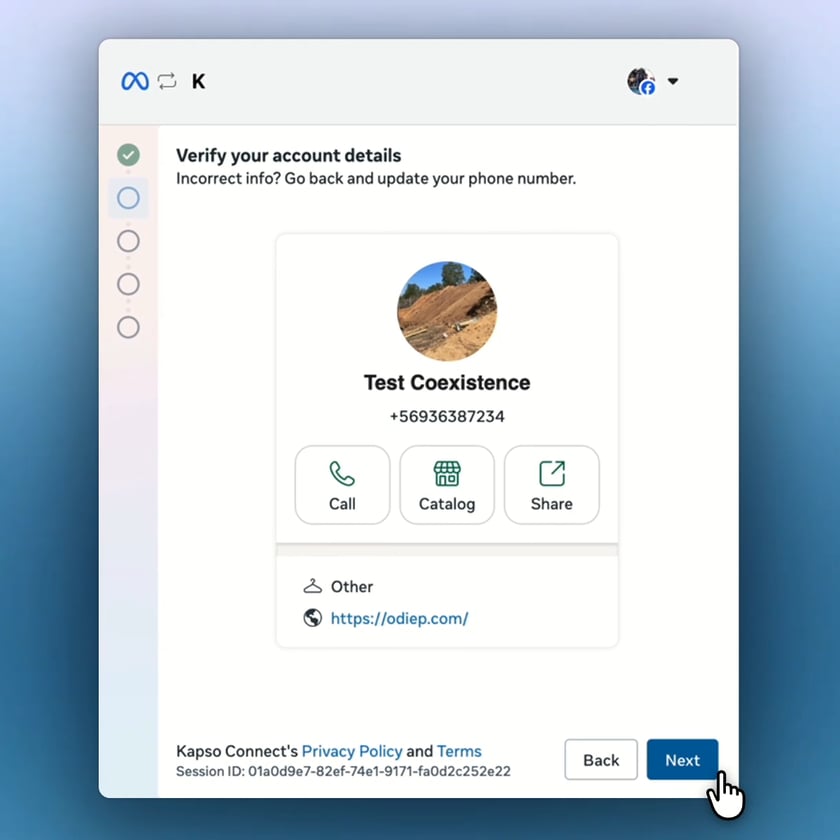
-
On Select the business assets to share with Kapso, choose the Business portfolio for the business that owns this WhatsApp number and click Next.
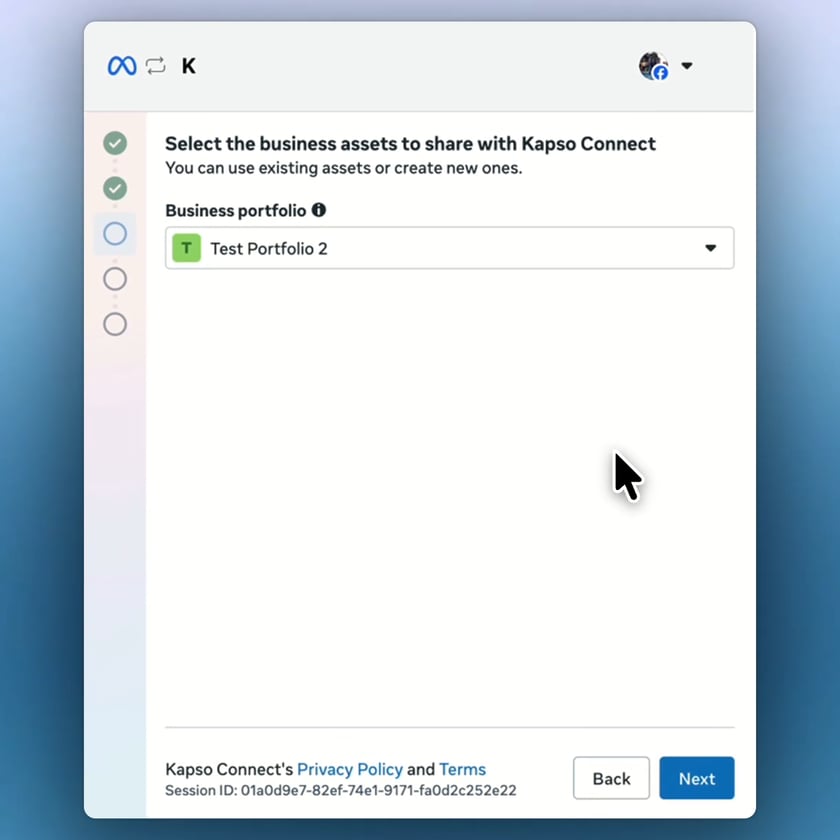
-
On Import contacts and chat history, Meta shows a QR code. Keep the browser window open and pick up your phone.
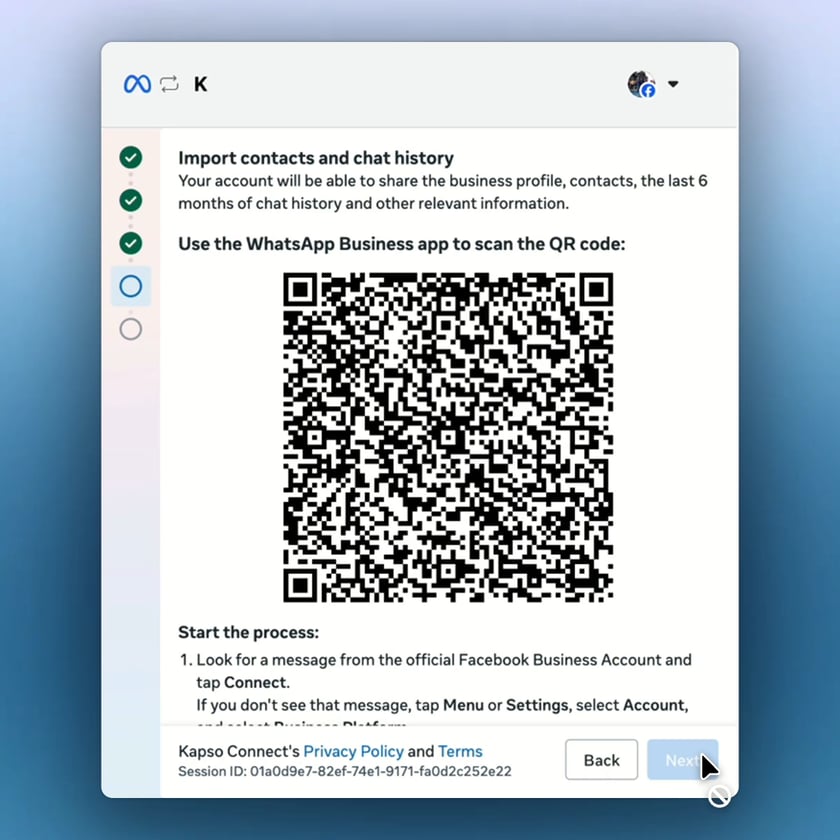
-
Open the WhatsApp Business App and tap the camera icon in Chats.
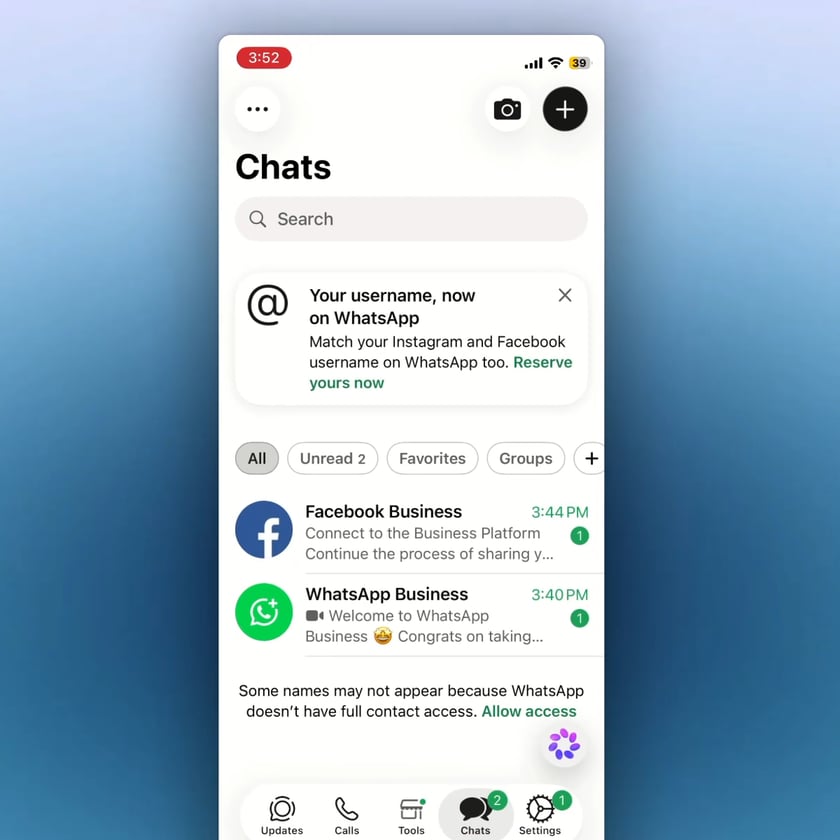
-
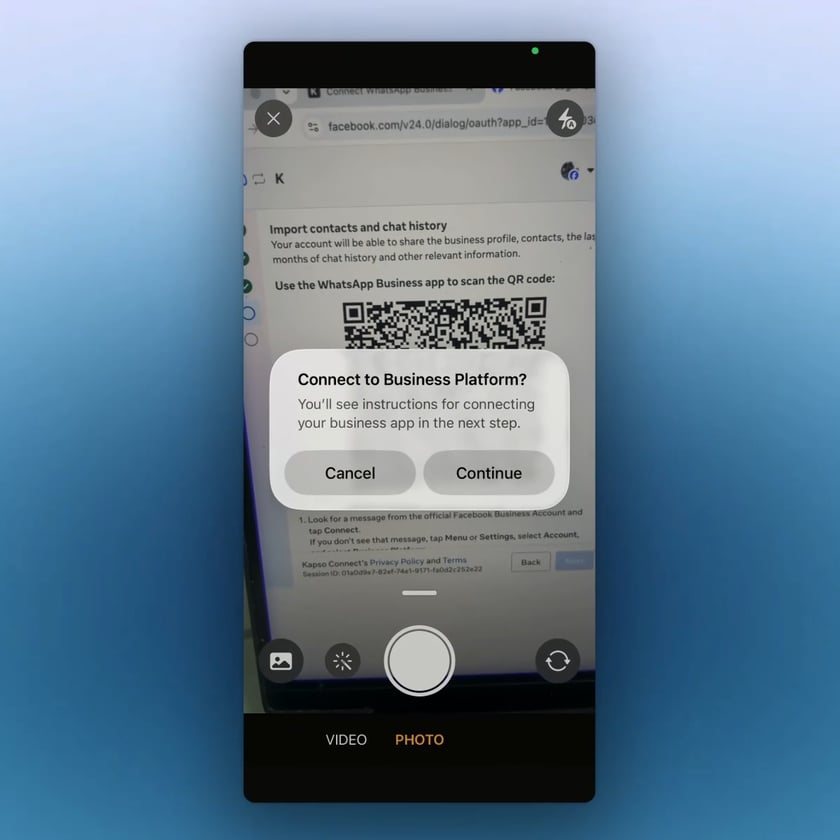
Point the camera at the QR code in the browser. When the app asks Connect to Business Platform?, tap Continue.
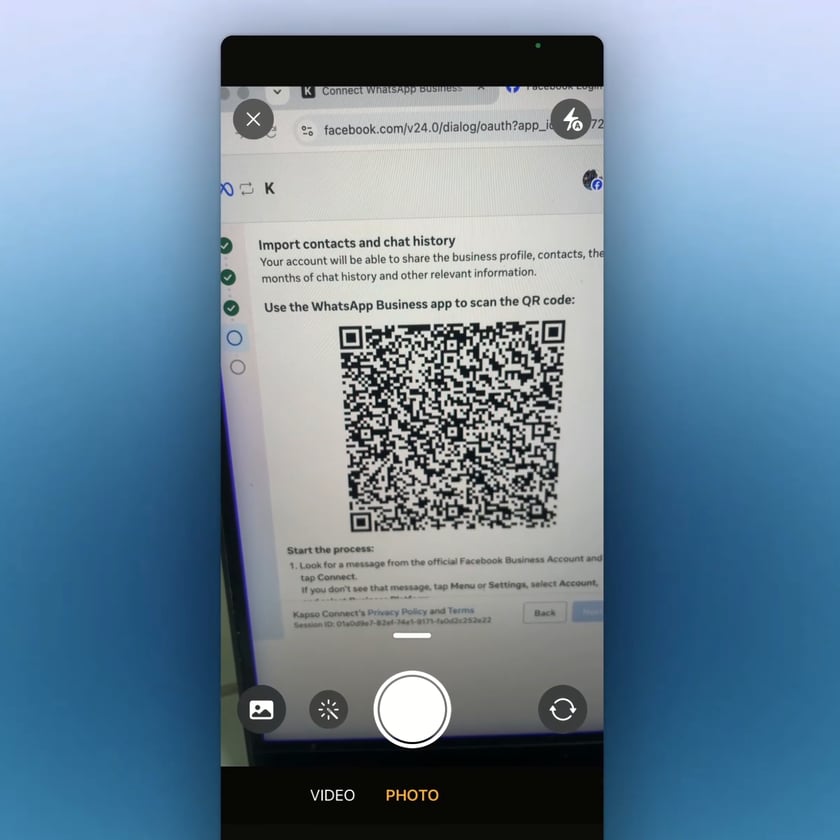
-
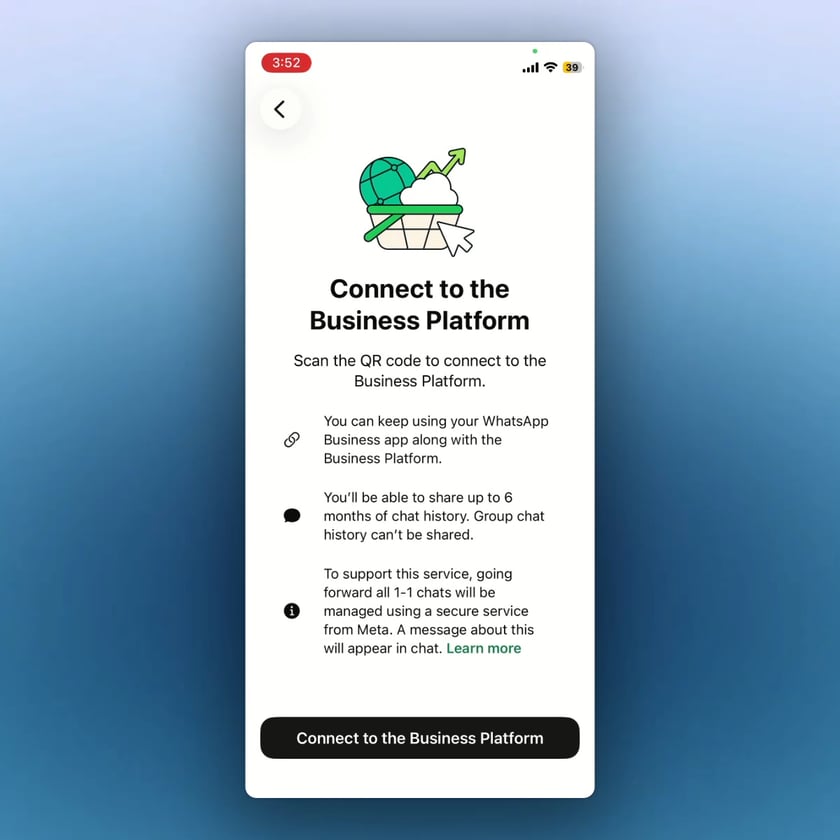
On Connect to the Business Platform, review the information and tap Connect to the Business Platform.
-
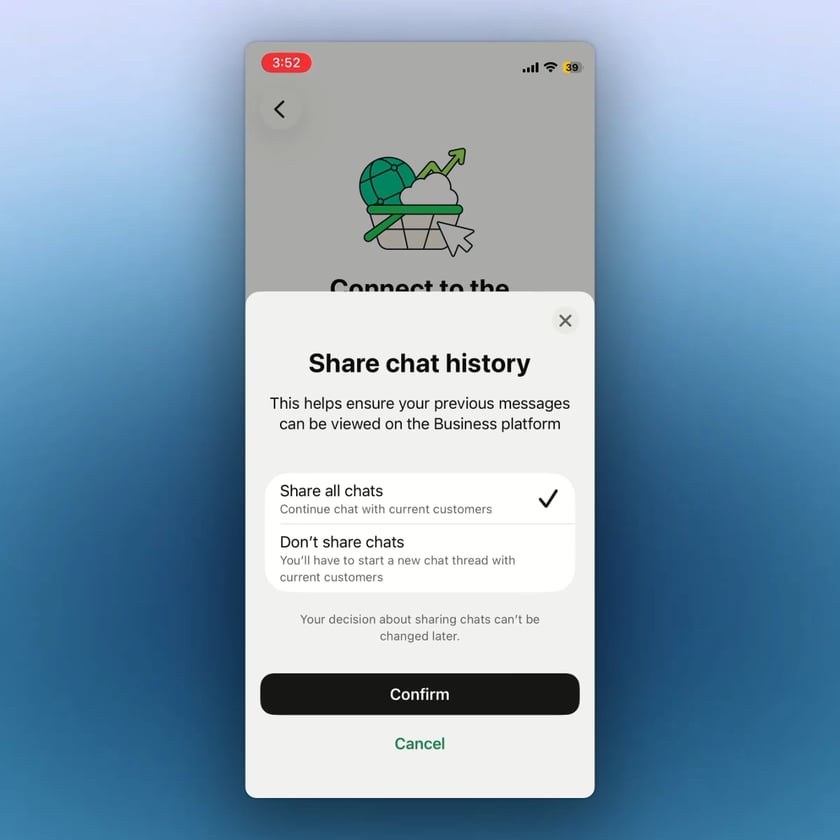
On Share chat history, choose Share all chats or Don’t share chats, then tap Confirm. You cannot change this decision later. The app may ask for Face ID or your passcode.
-
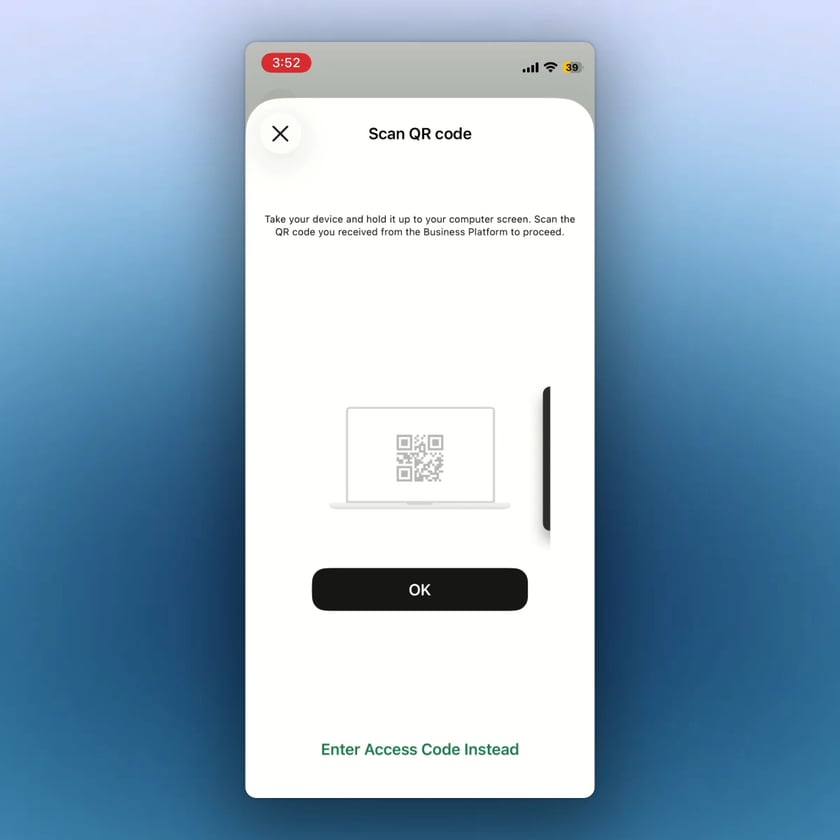
Scan the QR code until the app shows Connecting your account. If you can’t scan, tap Enter Access Code Instead and use the code from the Meta screen.
-
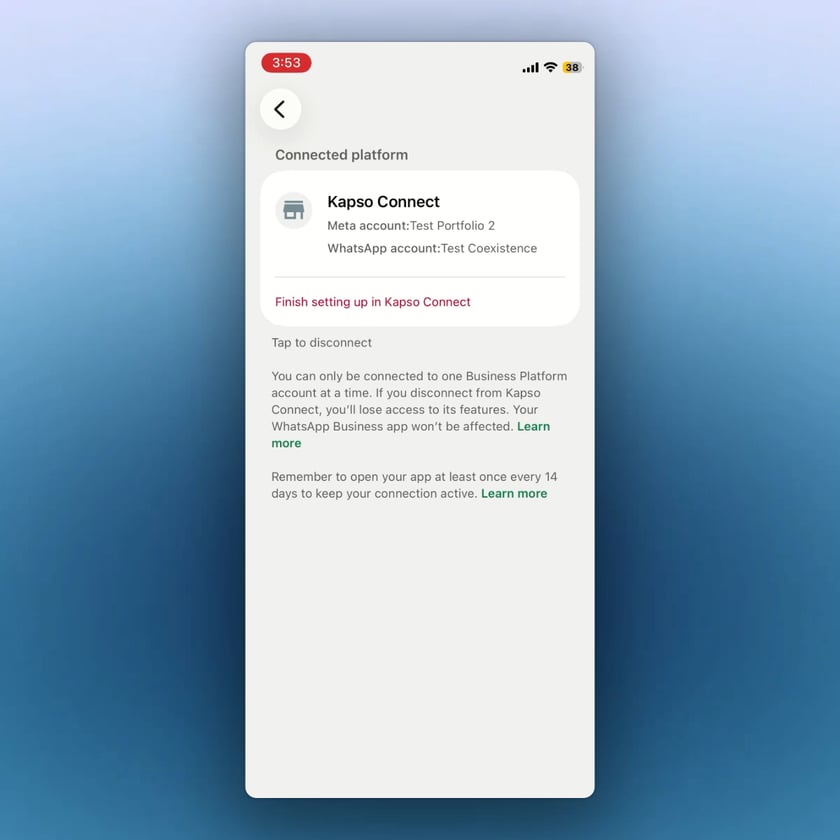
When the phone shows Connected platform with Kapso listed, go back to the browser.
-
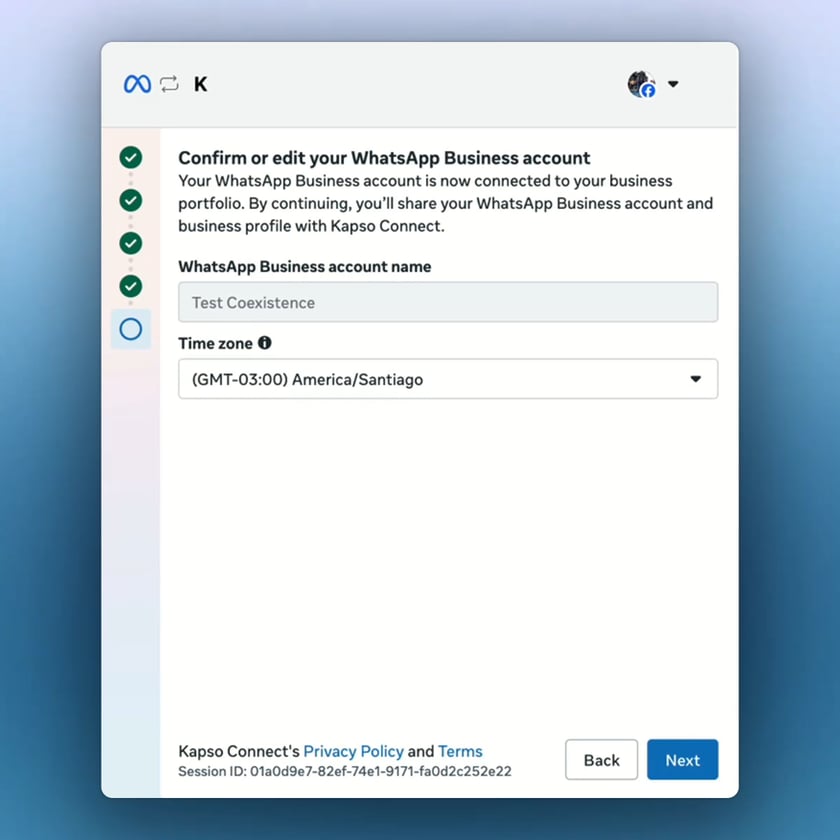
On Confirm or edit your WhatsApp Business account, confirm the WhatsApp Business account name, select the Time zone, and click Next.
-
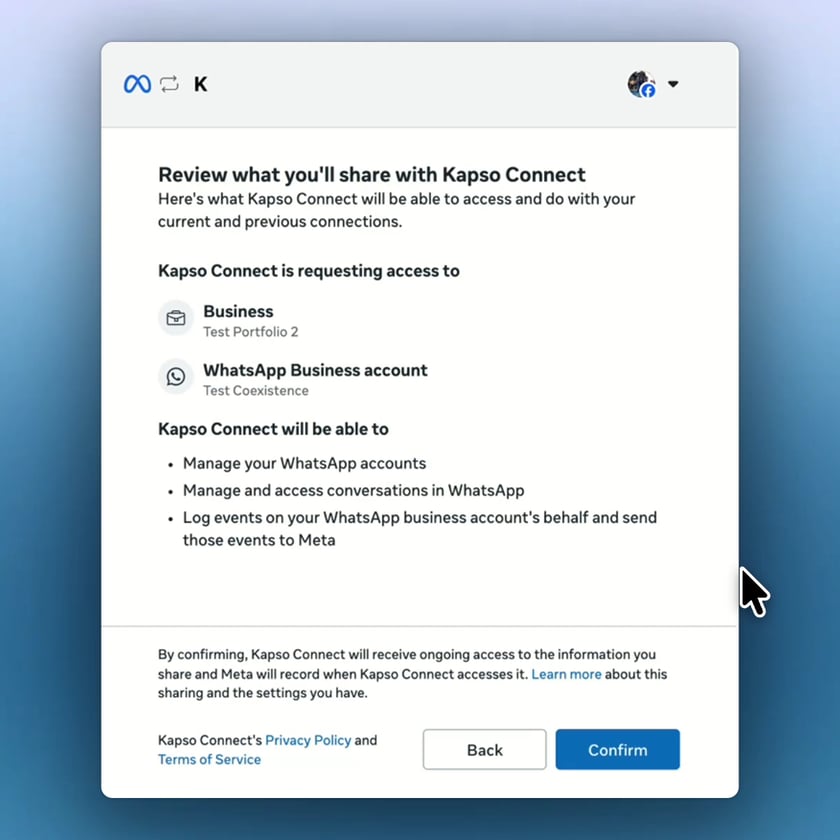
On Review what you’ll share with Kapso, review the requested access and click Confirm.
-
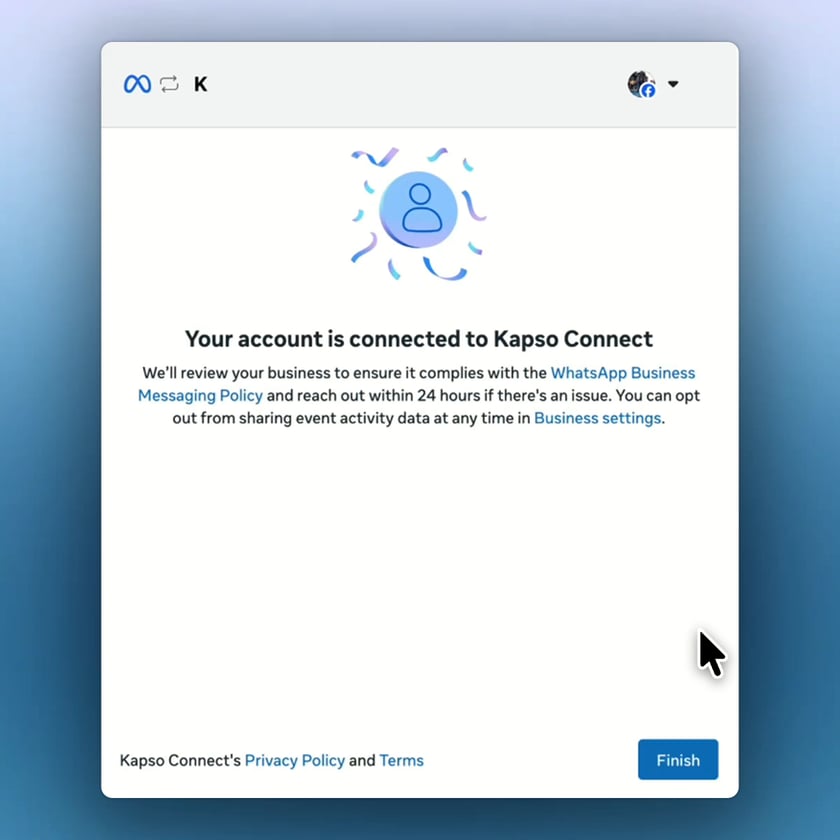
When Meta shows Your account is connected to Kapso, click Finish. This final step sends you back to Kapso so the connection can be completed.
Bring your own SIM
Use a phone number you already control as a dedicated Cloud API number. This path is for a number that can move fully to Kapso’s API connection. It is not for keeping the same number active in the WhatsApp Business App. Before using this option:- keep the SIM, phone line, or landline available during setup
- use a number you can verify by SMS or voice call
- make sure the number is not already connected to another Kapso project
- remove the number from previous providers or WhatsApp Business App registrations before retrying
- Go to Connected numbers → Connect new number
- Select Bring your own SIM
- Click through to open Meta embedded signup
-
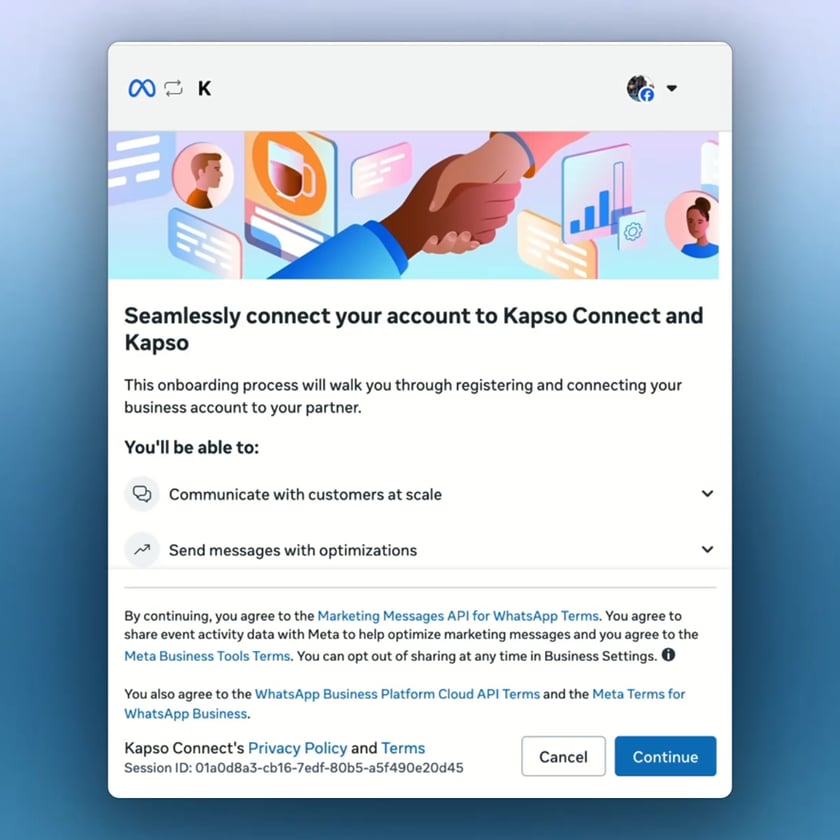
Log in with the Facebook account that has access to your business. On Seamlessly connect your account to Kapso, review what Kapso will be able to do and click Continue.
-
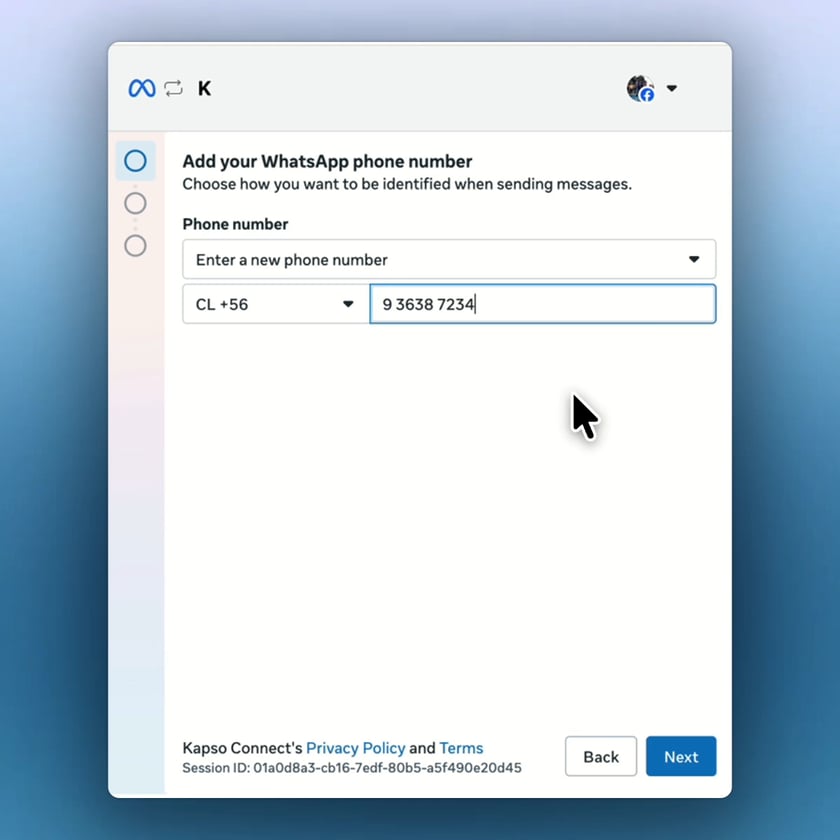
On Add your WhatsApp phone number, keep Enter a new phone number selected. Do not choose Use a display name with a virtual number instead. Select the country code, enter the phone number you want Kapso to use, and click Next.
-
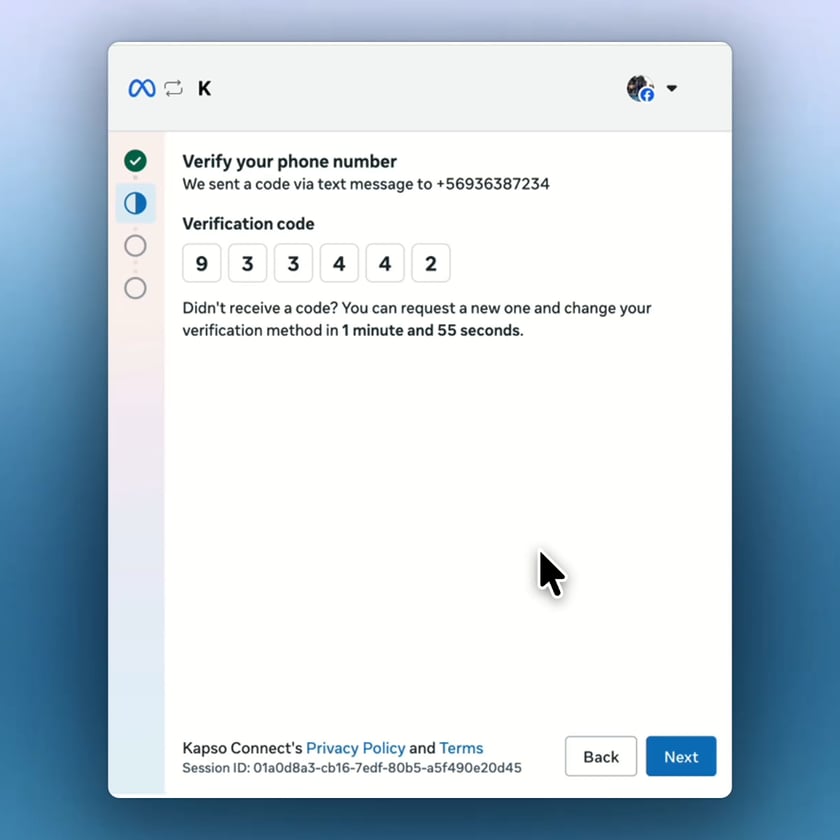
On Verify your phone number, enter the 6-digit code that Meta sends by text message and click Next. If the code does not arrive, wait for the timer and request a new code, or switch the verification method to Phone call.
-
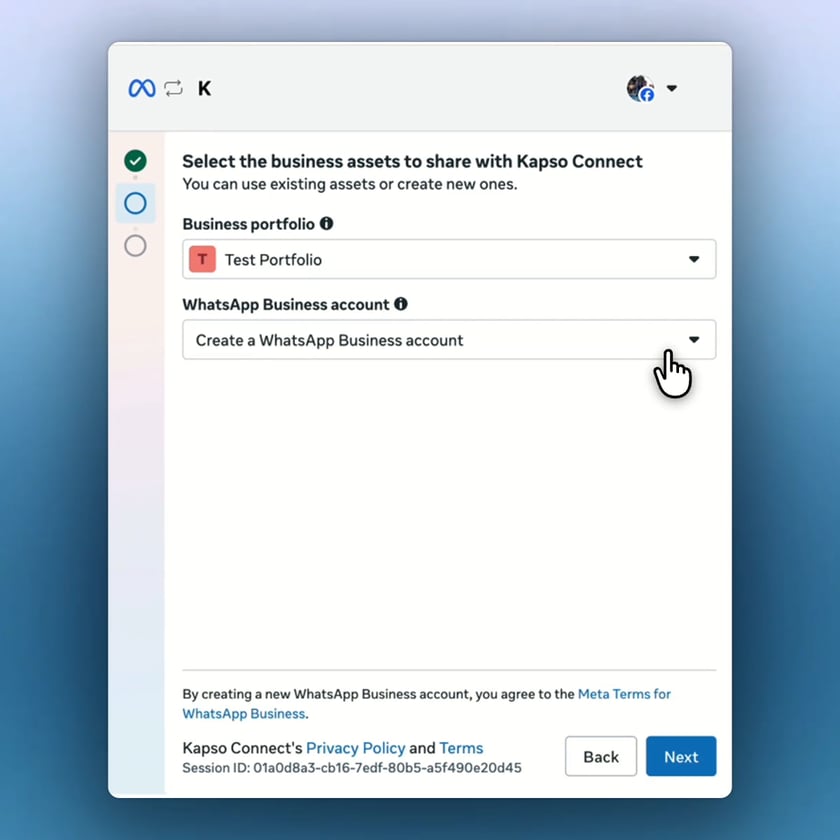
On Select the business assets to share with Kapso, choose the Business portfolio for the business that owns this phone number.
-
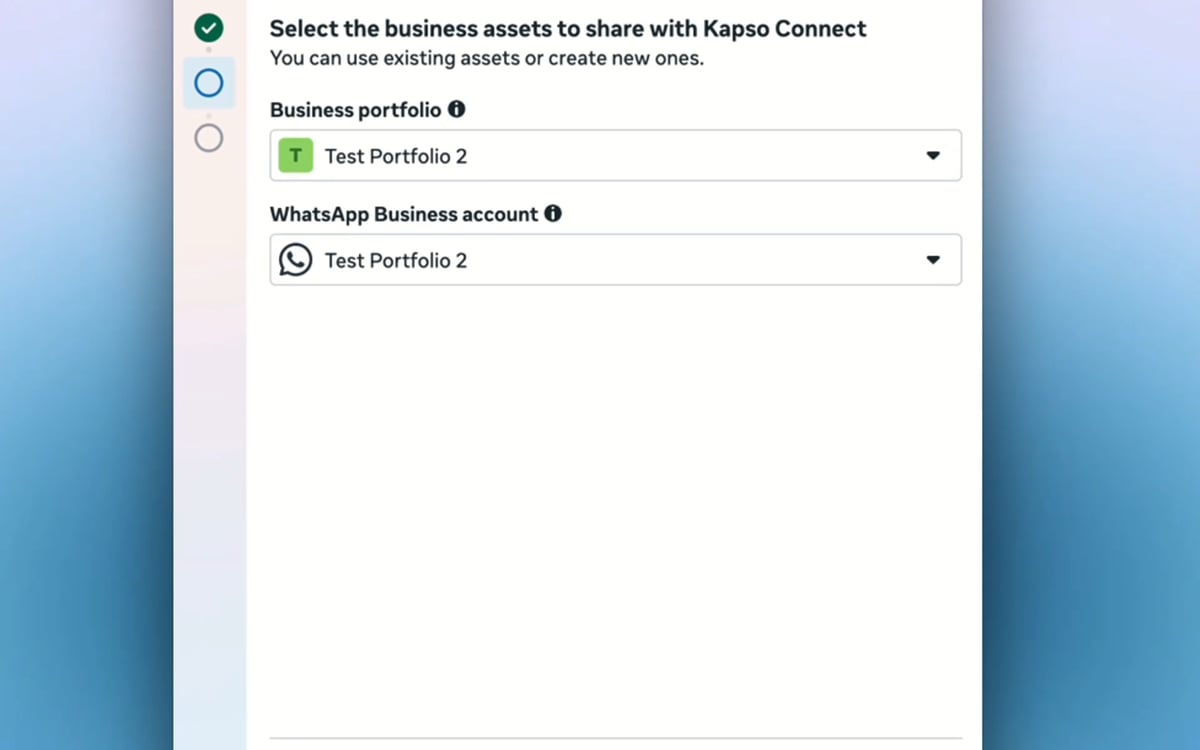
In WhatsApp Business account, choose an existing account or keep Create a WhatsApp Business account, then click Next.
-
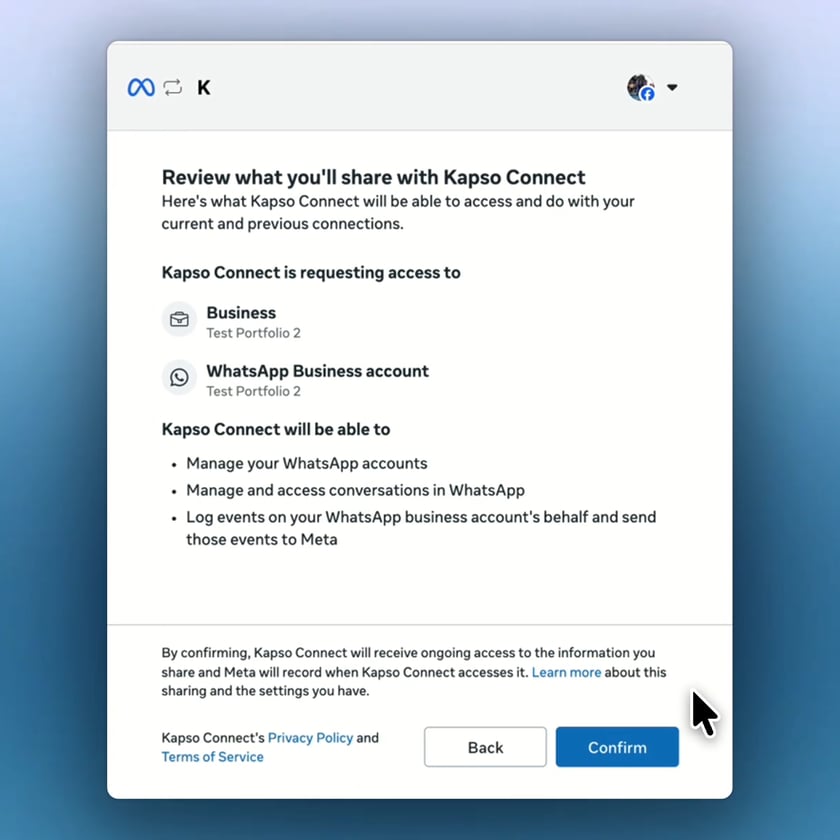
On Review what you’ll share with Kapso, review the requested access and click Confirm. Meta shows Connecting your account for a few moments.
-
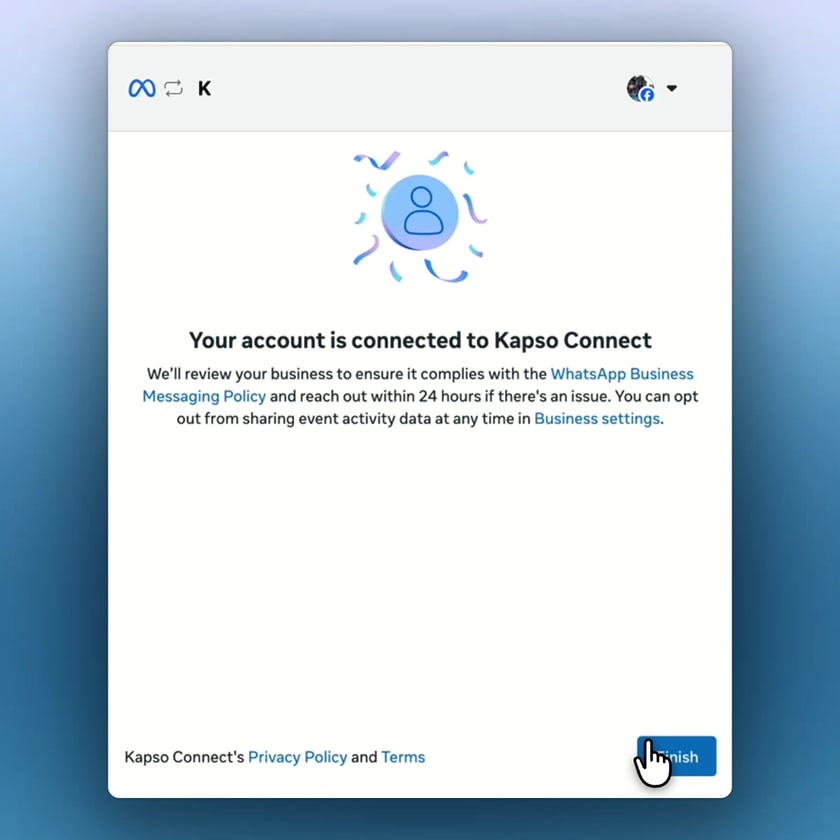
When Meta shows Your account is connected to Kapso, click Finish. This final step sends you back to Kapso so the connection can be completed.
Manual setup and Meta apps
If you manually add a WhatsApp phone number instead of using embedded signup, Kapso may need your Facebook App ID and App Secret to validate incoming Meta webhooks. You can find these in Meta under App settings → Basic. In Kapso:- Go to Phone numbers
- Open Meta apps
- Create a Meta app with your App ID and App Secret
- Edit the manually added phone number
- Select the Meta app
- Save
If the popup doesn’t load
Disable ad blockers and privacy extensions. They block Meta’s SDK. Try Chrome or Firefox if Safari isn’t working.Why to avoid the display name option
In all of the signup flows, the Phone number dropdown in Meta includes Use a display name with a virtual number instead (older versions of the flow call it Use a display name only). If you choose it, you may complete Meta signup but end up with a limited Meta-managed number instead of the intended production number. Consequences:- The connected number may not be the pre-verified number, project-pool number, or SIM number you meant to connect.
- These limited Meta-managed numbers can stop working after about 5 messages and ask for display-name approval before you can keep using them.
- Display-name approval can take a long time, and Meta may defer the decision. While the decision is pending or deferred, you may be left unable to use the number.
- You may need to delete or disconnect that WhatsApp profile and restart onboarding through the correct Kapso flow.
Need help? In Kapso, go to the sidebar, click ‘Help’ and select ‘Support’